

The Editor
Open the editor from the Hive view by clicking on any locale, or by clicking Translate next to a locale in the Hive overview.
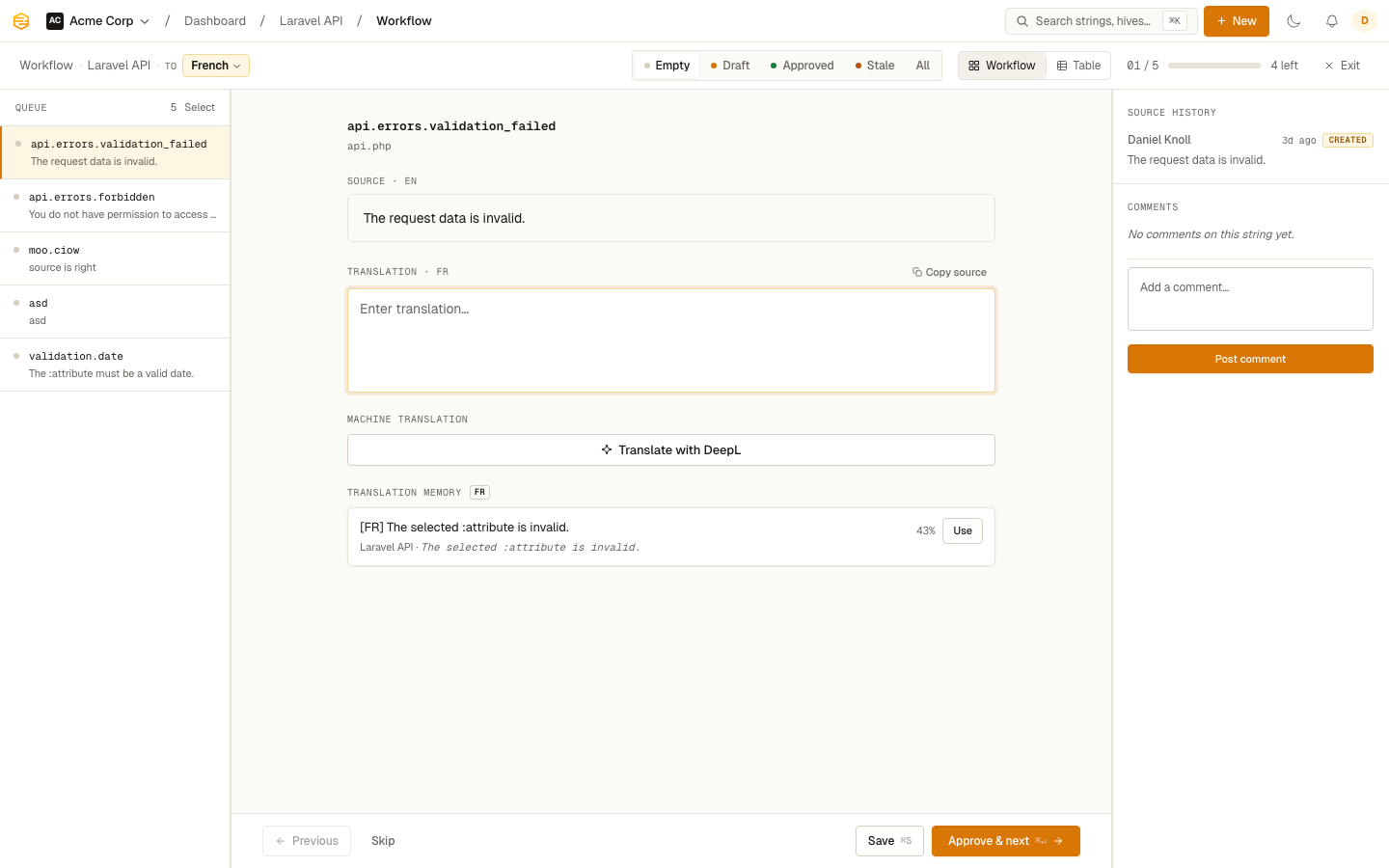
The queue
The editor works through strings in a queue. At the top you'll see how many strings are in the current mode and where you are in the list. You can filter the queue by mode:
| Mode | Shows |
|---|---|
| Untranslated | Strings with no translation yet |
| Translated | Strings with a translation, waiting for approval |
| Approved | Strings that have been signed off |
| Stale | Approved translations where the source has since changed |
Switch modes using the tabs above the string list. The number badge on each tab tells you how many strings are waiting.
Translating a string
Click a string in the queue to load it in the editor. You'll see:
- The source text (what you're translating from)
- A translation field where you type your output
- Any glossary terms highlighted in the source with their suggested renderings
- Translation memory suggestions if similar strings have been translated before
Type your translation and hit Save & Approve to mark it approved, or Save & Next to save and jump to the next string. If you want to skip a string and come back later, hit Skip.
Plural strings
If a string is plural, you'll get a separate input for each plural form needed by the locale. English has two: one (1 item) and other (0 items, 2 items, etc.). Polish has four. The editor shows only the forms that apply to the locale you're translating into.
Table view
For a birds-eye view, switch to Table mode. This shows all strings and all locales side by side, great for spotting gaps or inconsistencies across languages at a glance.
Approving in bulk
In the queue sidebar, select multiple strings using the checkboxes, then use Bulk Approve or Bulk Unapprove. Useful for quickly signing off on a batch of machine-translated strings after review.
Strings with placeholder mismatches are skipped automatically during bulk approval — they stay in the Translated state. The confirmation toast tells you how many strings were approved and how many were skipped so you can address them individually.
Copy source
The Copy source button fills the translation field with the source text. Handy for strings that don't need translation, like proper nouns or code values.